
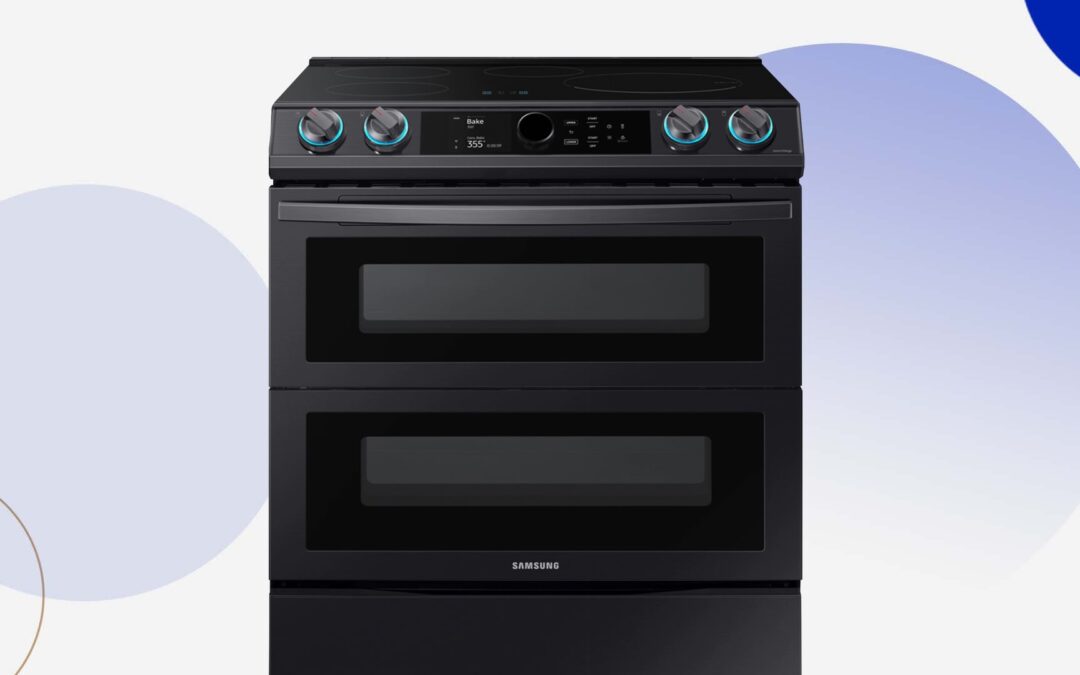
A clock is included with your Samsung range, but most homeowners do not know how to set the clock on their Samsung range without a clock button. When you need to change or reset the current time, it is possible with your Samsung range, even if it does not include a clock button. Most of these clock resets are required if you happen to use your range unit and a power outage occurs. An accurate clock will also ensure that the range’s automatic and smart features, such as delayed cooking or Sabbath mode, function properly. There are several steps that can guide you through the process of resetting, but it is advisable to also consult a technician for Samsung range repair in case your unit is experiencing defects after the power outage.
Check your range’s digital user manual
Because of issues like these, keeping the user manual you receive upon appliance purchase becomes more valuable. These manuals usually have detailed steps on how to reset your Samsung range. However, certain Samsung models may have a different resetting procedure after a power outage. If consulting your user manual or troubleshooting manual does not solve the problem, you can consult a repair technician at Samsung Repairs for thorough assistance on how to resolve your appliance issue.
Set the clock on your Samsung range with a smart dial
Sleep mode is one of the features you can find in smart dial models. This feature will activate after two minutes of inactivity on the control panel. You will know that your Samsung range is inactive because the control panel will only show the time when in Sleep mode. To activate the control panel again, press or turn the dial knob.
Here is a detailed procedure on how to reset your smart dial model:
- On the control panel, tap the Menu, which is indicated by three horizontal lines.
- Set the time using the dial knob.
- Enter the time using the dial knob.
- To confirm your entry, turn the dial knob.
- As a piece of additional information, if you want to switch between regular and military time, it is also possible to do this with your smart dial model. Tap the Menu again (the three horizontal lines) on the oven’s control panel, then use the dial knob to select Time format. You can then turn the dial to select 12hr or 24hr, then press the dial knob to save your settings.
- Set the clock on your range (applicable for most Samsung models) – If the above suggestions do not apply to your range model, the following instructions may be the steps you need to reset the clock in your Samsung range. However, certain models may still vary in their settings and consulting the user manual may still be required.
- Go to your range’s control panel and select Clock. Some range models display a clock icon, while others display the word “Clock.” (This particular button may have a secondary function that opens the Settings menu if you hold it down for 3 seconds, so don’t hold it down for too long.)
- Some models require you to press the Clock button again to select AM or PM. If this option is unavailable or your oven’s clock is set to a military time display, skip this step.
- Depending on your range model, enter the time in hours and minutes using the number pad display or the provided directional buttons.
- To confirm your settings, press the Clock or the Start button. If you entered the wrong time, press the Clear button to restart.
- The new set time will be displayed on the unit.
Do you require assistance with your Samsung range today?
If you notice other issues with your Samsung range or your other Samsung units after a power outage, you may need to consult the assistance of a repair professional. Power outages can cause a surge in the electrical outlets where your smart unit is plugged in, and it may cause damage to the device. Working with your Samsung unit may also cause electrical hazards for you and the other building occupants. Our repair technicians can assess the issue of your home appliance and can walk you through the correct resetting process for your units. Contact our repair experts today or learn more about how to change the settings in your Samsung range by referring to our other articles.